
Jackal SUL (Jazzy)
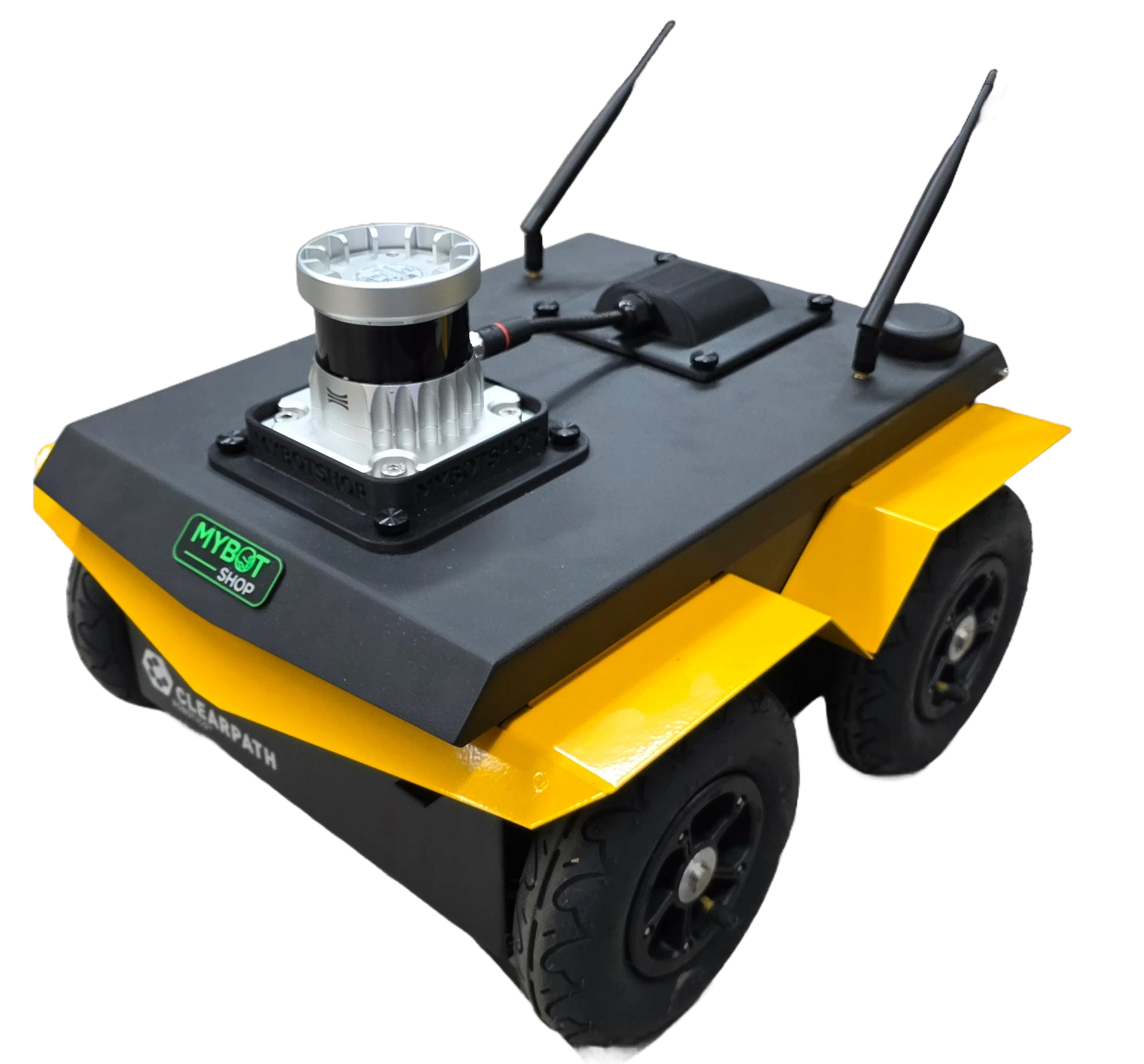
Getting Started
To start-up the Jackal, the instructional video playlist can be used which details the opening and use of the Jackal.
Important
This manual is an extension of the Clearpath Jackal J100 documentation for ROS2 Jazzy users. For powering on and basic usage, refer to the Clearpath product documentation.
Platform Overview
Jackal is a durable, lightweight, and fast unmanned ground robot designed for rapid prototyping and research purposes. It comes equipped with an onboard computer, as well as essential IMU and GPS capabilities. Standard perception tools are available, featuring URDF, simulator integration, and demonstration applications.
The Jackal SUL is configured with:
Ouster LiDAR - High-resolution 3D LiDAR for mapping and navigation
ROS2 Jazzy - Latest ROS2 distribution on Ubuntu 24.04
Clearpath Robot Services - Automatic driver startup on boot
Nav2 Navigation Stack - Full autonomous navigation capabilities
Data Sheets
Documentations
Robot Interface
Instructions for interfacing with the robot using Ubuntu 24.04 and ROS2 Jazzy.
Important
This procedure should be followed after reading the manuals for the Clearpath Jackal. Furthermore, all of the Jackal’s functionality can be verified via the tutorials by Clearpath. Instructions for set up can be found at Jackal Docs.
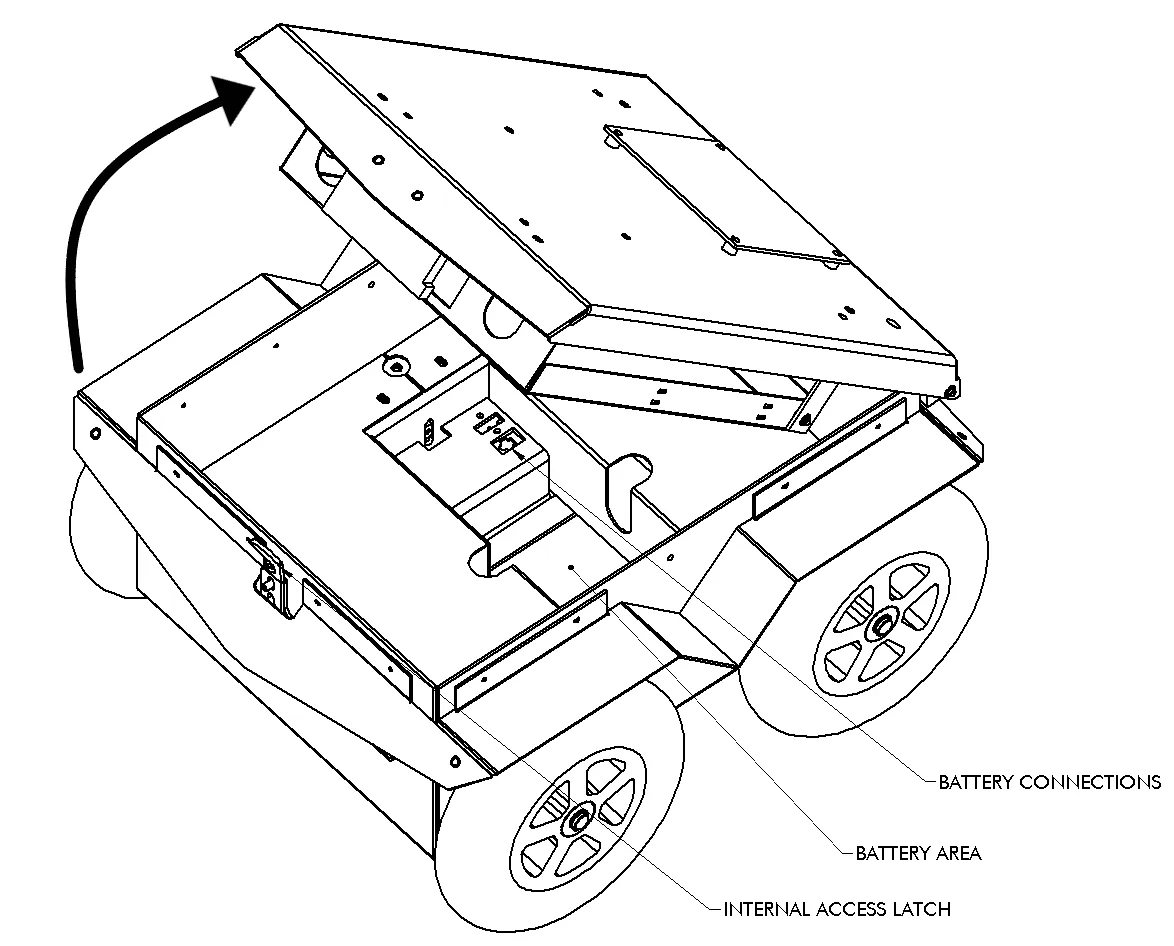
|

|
Open the latch
Unscrew the user tray
Connect ethernet cable
Note
The Ethernet port at the back of the Jackal can be utilized for setting up communication via LAN.
Static Network Connection
For the first time, one needs to connect through a LAN cable to configure the robot’s network. To create a static connection in your PC (not the robot’s), in Ubuntu go to Settings -> Network then click on + and create a new connection.
Change the connection to Manual in the IPv4 settings.
Set the Address IP as 192.168.131.51 and the Netmask as 24.
Click save and restart your network.
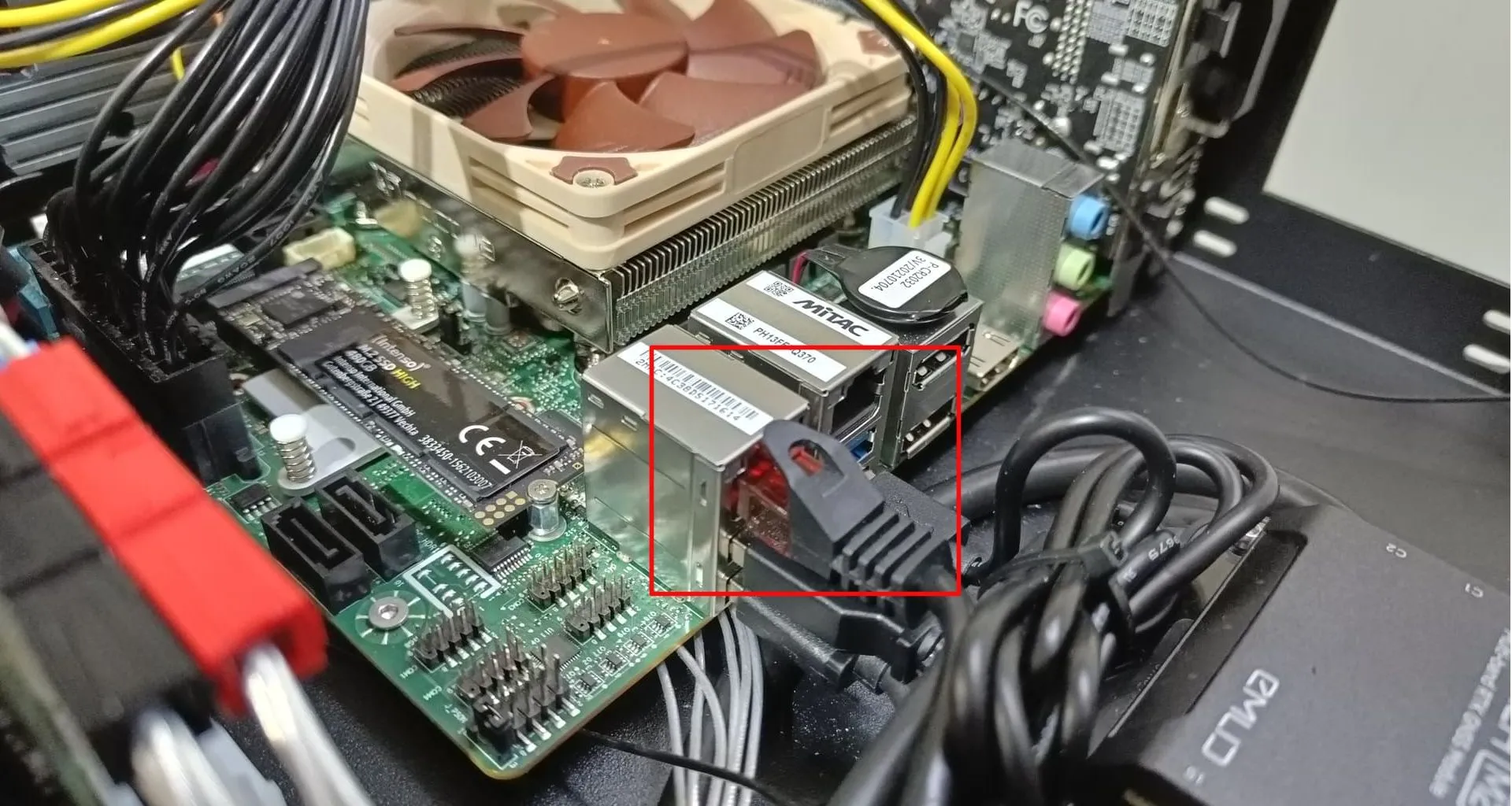
After a successful connection, check the host’s local IP by typing in the Host PC’s terminal:
ifconfig
Now, ping the robot:
ping 192.168.131.1
Access the robot via SSH:
ssh administrator@192.168.131.1
The default password is:
clearpath
Jackal IP Addresses
Device |
IP Address |
Username |
Password |
|---|---|---|---|
J100 Computer |
192.168.131.1 |
administrator |
clearpath |
Webserver |
192.168.131.1:9000 |
admin |
mybotshop |
Ouster LiDAR |
192.168.131.20 |
Note
Sometimes other networks can cause disruptions when connecting to the Jackal. It is best to have only your connection to the robot active and all others inactive.
Quick-Start
Powering on the Jackal
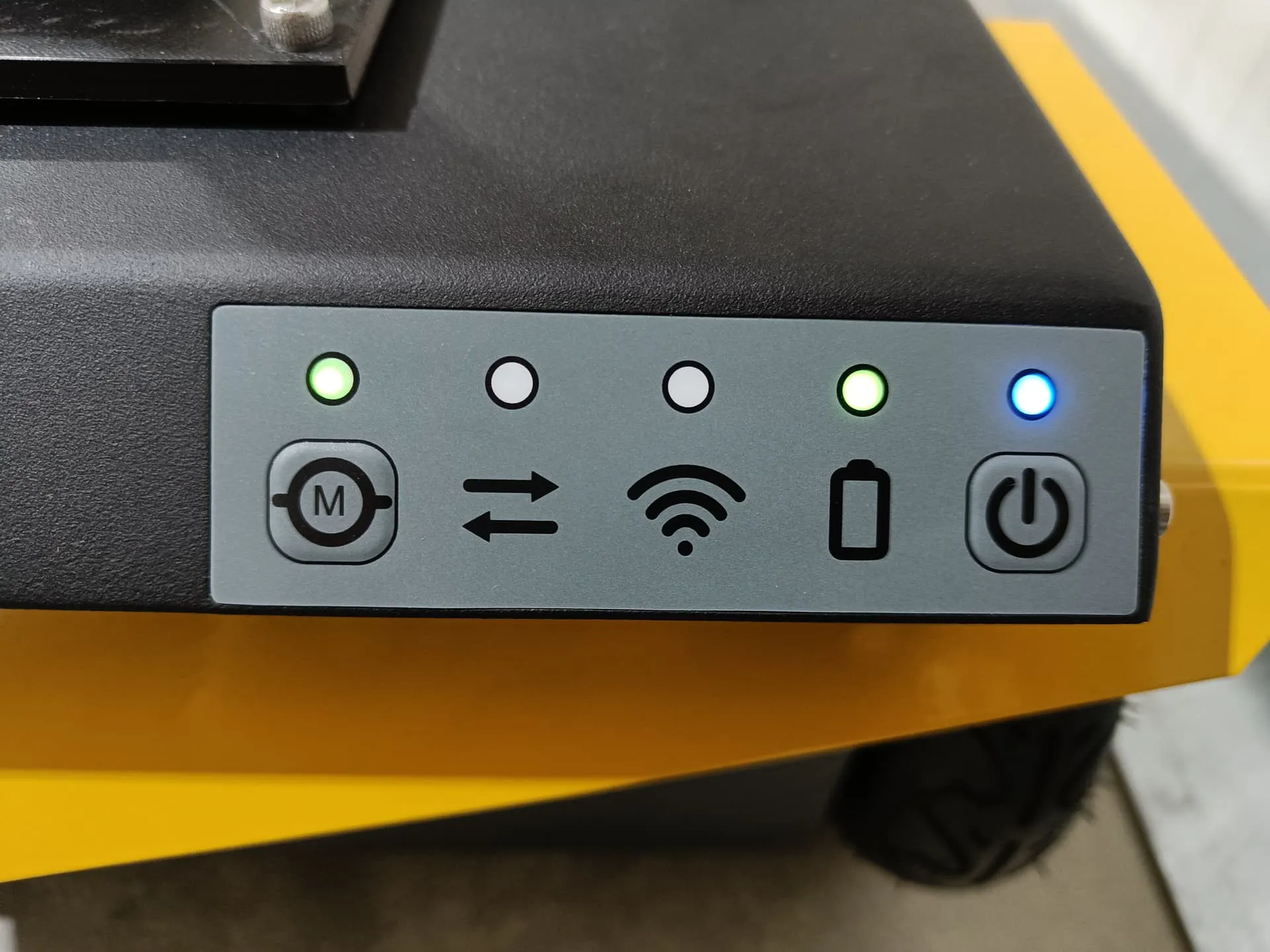
Release the emergency stop button by turning it clockwise.
Press the power button to turn on the robot.
Wait for the robot to boot up completely (approximately 1 minute).
The Clearpath services will start automatically.
PS4 Controller
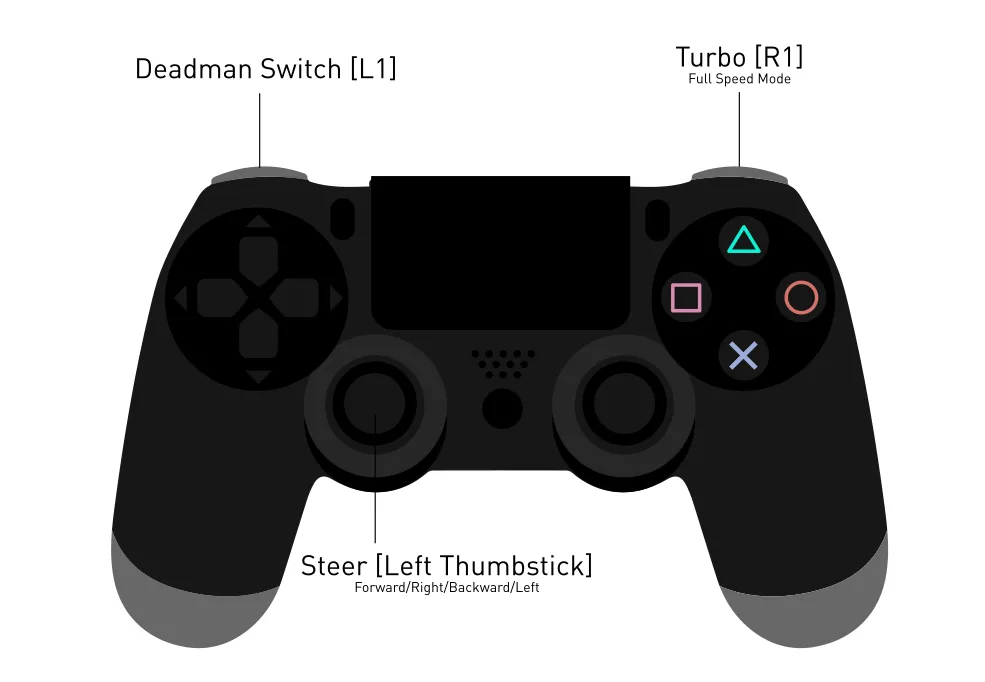
PS4 button is to power on the controller.
L1 is the dead man’s switch for slow speed.
R1 is the dead man’s switch for high speed.
LJ is to move in x direction.
Digital Twin (RViz2)
To visualize the Jackal, you can run:
ros2 launch jkl_viz view_robot.launch.py
ROS2 Drivers - MBS
The ROS2 drivers mentioned below are all automatically started when launching the system launch file. These drivers further expand on the functionality for interfacing as well as for independent component checking.
Overview
The J100 ROS2 driver includes the following components:
Joint States Publisher
Robot Description (URDF)
Platform Control
Inertial Measurement Unit (IMU) Publisher
Sensor Fusion
Twist Mux (Command Multiplexer)
Auto Drivers Startup
The J100 uses Clearpath robot services for automatic startup. To check service status:
sudo systemctl status clearpath-robot.service
To restart the service:
sudo systemctl restart clearpath-robot.service
Environment Variables
The following environment variables are used by the J100 system:
Variable |
Default |
Description |
|---|---|---|
JKL_NS |
j100_0941 |
Robot namespace |
Note
Replace j100_0941 with your robot’s namespace throughout the documentation.
Sensors
LiDAR - Ouster
The Ouster LiDAR is automatically started when launching the system launch file. The ROS2 driver expands functionality for interfacing and independent component checking.

Documentation: https://github.com/ouster-lidar/ouster-ros
Published Topics:
Topic |
Type |
|---|---|
/ouster/scan |
sensor_msgs/LaserScan |
/ouster/points |
sensor_msgs/PointCloud2 |
Simulation & Teleoperation
Gazebo Simulation
The J100 simulation package uses ROS2 Jazzy with Gazebo Fortress.
To launch the Jackal simulation environment:
ros2 launch jkl_gazebo fortress.launch.py
RViz2 Visualization
To visualize the robot in RViz2:
ros2 launch jkl_viz view_robot.launch.py
Teleoperation (Keyboard)
To teleoperate the Jackal using your keyboard:
ros2 run teleop_twist_keyboard teleop_twist_keyboard \
    --ros-args --remap cmd_vel:=/j100_0941/cmd_vel
To enable stamped messages:
ros2 run teleop_twist_keyboard teleop_twist_keyboard \
    --ros-args --remap cmd_vel:=/j100_0941/cmd_vel -p stamped:=true
Note
Replace j100_0941 with your robot’s namespace.
Debugging Tools
Check Transforms (TF Tree)
To debug TF tree:
ros2 run rqt_gui rqt_gui tf:=/j100_0941/tf tf_static:=/j100_0941/tf_static
Visualize URDF
To view the robot’s URDF model:
ros2 launch jkl_description view_robot.launch.py
Start-up Job Status
The Jackal uses Clearpath robot services for automatic launch of ROS2 nodes. To check service status:
sudo systemctl status clearpath-robot.service
Service Status Indicators:
Red marker - The startup job has failed
Green marker - Everything is working correctly
Grey marker - The service has not started yet
ROS2 Package Reference
Detailed documentation for each package in the J100 workspace.
jkl_description
URDF and Xacro robot description files for the J100 Jackal platform.
Usage:
ros2 launch jkl_description view_robot.launch.py
jkl_gazebo
Gazebo simulation package for the J100.
Usage:
ros2 launch jkl_gazebo fortress.launch.py
jkl_3d_slam
3D LiDAR SLAM package using graph-based optimization with NDT scan matching and loop closure detection.
Components:
scanmatcher_node - NDT-based scan matching for odometry
graph_based_slam_node - Loop closure and graph optimization
Usage:
ros2 launch jkl_3d_slam system.launch.py
jkl_viz
RViz2 visualization package with pre-configured displays.
Usage:
ros2 launch jkl_viz view_robot.launch.py
ROS2 Information
ROS Version: Jazzy
Simulation: Ignition Fortress
Robot Namespace: /j100_0941
Middleware: rmw_cyclonedds_cpp (recommended)
Autonomous Mobile Robot Safety Guidelines
When deploying autonomous mobile robots, prioritizing safety procedures is essential to prevent accidents and ensure secure operations. The following guidelines outline key safety measures when working with an autonomous mobile robot:
Work Area Safety
Maintain a clean and well-lit work area. Cluttered or poorly illuminated spaces can impede the proper functioning of sensors and navigation systems.
Avoid operating autonomous mobile robots in explosive atmospheres, such as areas with flammable liquids, gases, or dust. The robot’s components may pose a risk in such environments.
Keep bystanders and unauthorized personnel at a safe distance during robot operation to prevent interference with autonomous navigation.
Electrical Safety
Ensure the robot’s power system adheres to electrical safety standards. Regularly inspect and maintain power components to prevent malfunctions.
Implement mechanisms to protect the robot from adverse weather conditions, such as rain or wet environments.
Regularly inspect power cables and connections and replace damaged components promptly to minimize the risk of electrical issues.
Emergency Response
Install an emergency stop mechanism to quickly halt the robot’s operation in case of unforeseen circumstances or emergencies.
Clearly mark and communicate emergency stop locations throughout the robot’s operational area.
Conduct regular emergency response drills to ensure personnel are familiar with procedures for handling unexpected situations.
Data Security and Privacy
Implement robust cybersecurity measures to protect the robot’s control systems and data from unauthorized access or manipulation.
Ensure compliance with privacy regulations when collecting, storing, or transmitting data captured by the robot’s sensors.
Human Interaction Safety
Integrate sensors and communication systems to detect and respond to the presence of humans in the robot’s vicinity.
Clearly communicate the robot’s operational status and intentions using visual and audible signals to alert nearby individuals.
Establish protocols for safe human-robot collaboration, especially in shared workspaces.
Residual Risks
Despite the implementation of safety measures, certain residual risks may persist. These include:
Impairment of sensor functionality.
Risk of collisions in crowded or dynamic environments.
Cybersecurity vulnerabilities.
Unintended human interactions due to unforeseen circumstances.
Autonomous Mobile Robots (AMR) are advanced technologies that require correct usage to avoid accidents and ensure a secure environment. Learn and follow the proper procedures diligently; prioritize both quality and safety.
Caution
Please read the instruction manuals pertaining to Clearpath Jackal before operating the robot.
Always be vigilant and remain close to the emergency stop buttons when the robot is in operation.
Do not allow persons who are not familiar with the robotics or these instructions to operate the robot. Robots are dangerous in the hands of untrained users.
Known Issues
…
Frequently Asked Questions
…